Upgrade CUE Print naar versie 3.26

Uit de release notes van CUE Print versie 3.23 – 3.24 – 3.25 en 3.26:
De tekst is in het Engels. De Google Translate versie voor Nederlands vind je hier.
De Google Translate Deutsche Übersetzung findet mann hier.
Support for Adobe Photoshop 2021 (v.22.4.2)
From version CUE Print 3.23.0, CUE Print supports Adobe Photoshop 2021 (v.22.4.2).
To be able to save an edited photo (.jpg) to CUE Print, some settings must be made in Adobe Photoshop.
To be able to choose the filetype .jpg when saving to the original temporary folder by means of Save or Save As, the Enable legacy “Save As” option must be checked in the File Handling tab in the Preferences dialog:
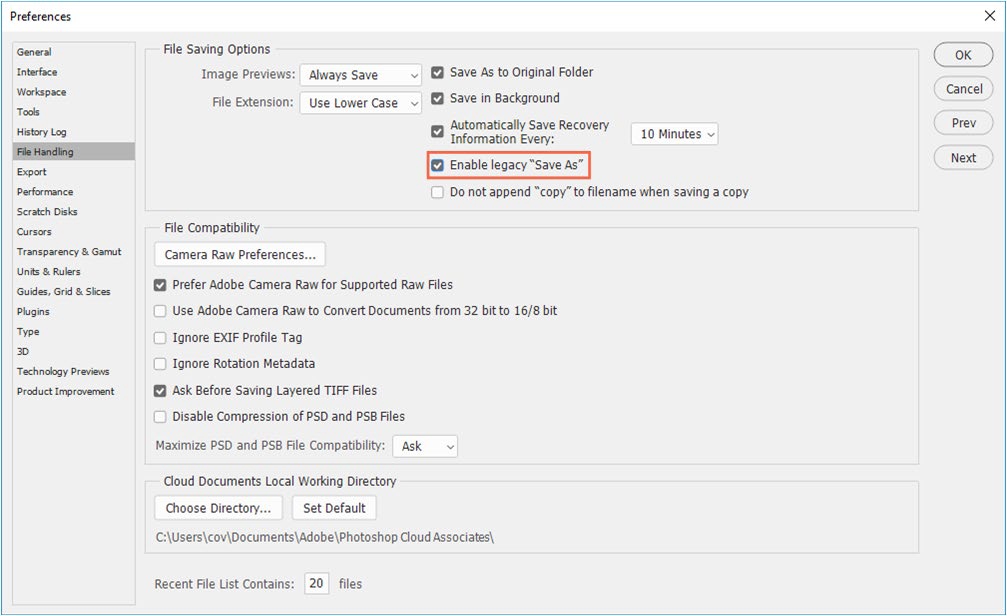
Figure 1. Setting the Enable legacy “Save As” option.
To be able to do a Save a copy with the filetype .jpg when saving to the original temporary folder, the Do not append “copy” to filename when saving a copy option must be checked in the File Handling tab in the Preferences dialog:
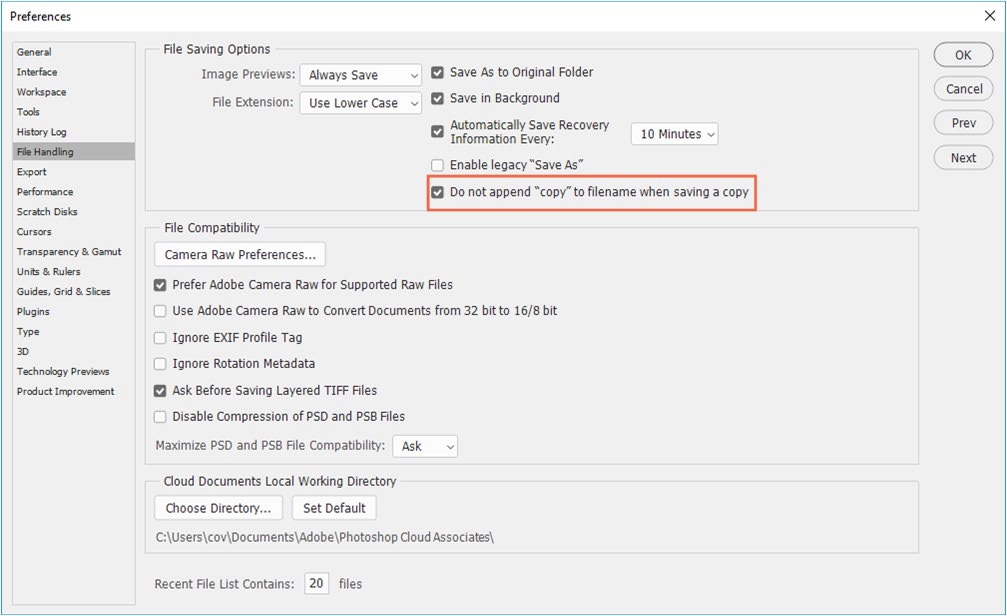 Figure 2. Setting the Do not append “copy” to filename when saving a copy option.
1.8 Full Client Installation on Windows
If a full client is upgraded from a pre-CUEPrint3.22 version to a post-CUEPrint3.22 version, the register entry needs to be changed due the new company name (Stibo DX).
This can be done via the following windows command (as administrator):
reg copy "HKLM\Software\CCI Europe\<CUE Print Full>" "HKLM\Software\Stibo DX\<CUE Print Full>" /reg:32 /s
Example:
reg copy "HKEY_LOCAL_MACHINE\SOFTWARE\WOW6432Node\CCI Europe\NGP1-test" "HKEY_LOCAL_MACHINE\SOFTWARE\WOW6432Node\Stibo DX\NGP1-test"
A new installation of a full client from CUE Print 3.22.0 an onwards will use the registry entry ‘Stibo DX’
Export of Bitmaps of Page Elements and Compression for DigitalOutput
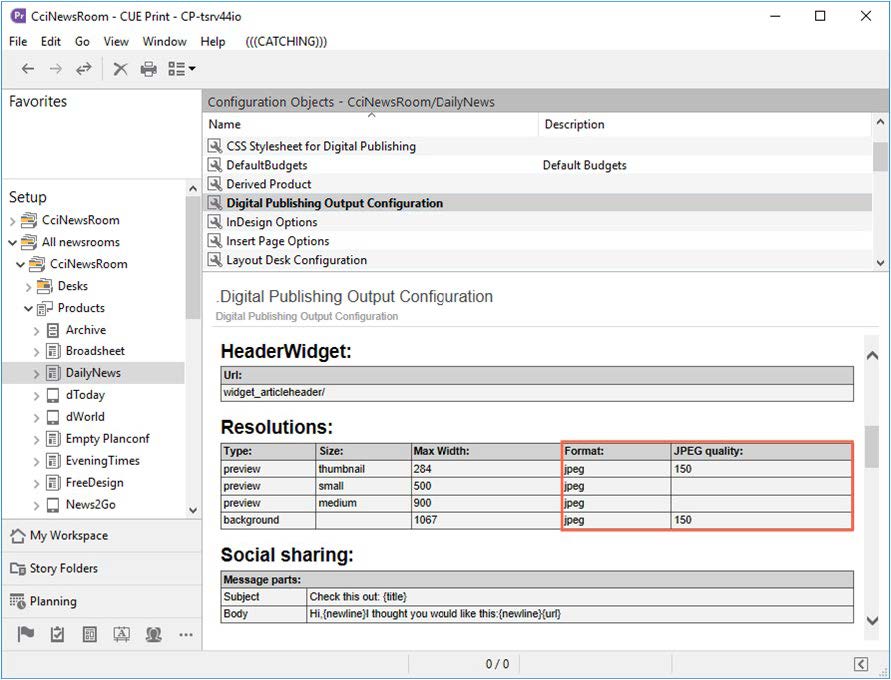
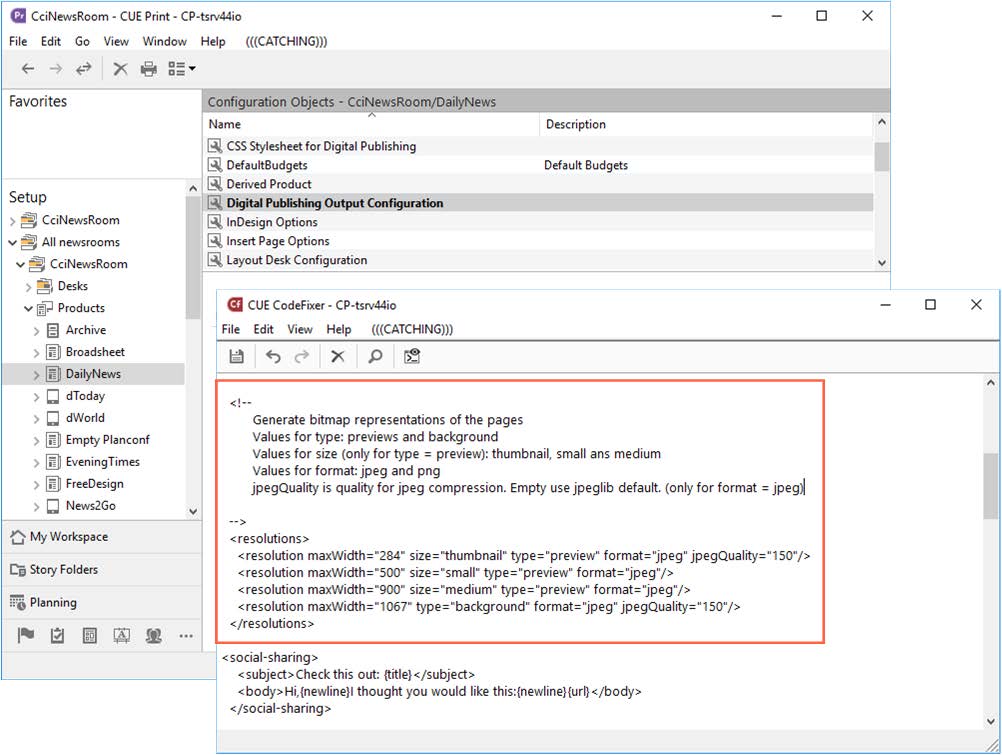
From version CUE Print 3.23.0, individual page elements are exported with the selected Export Option Set configured for photo and graphics in the CCI ConfigurationManager parameter CciApps.DigitalOutput.Data
The Export Option Set implements new defaults for export of page elements in DigitalOutput.
Furthermore, it is now possible to set up that all elements are exported as JFIF. In this case the quality can be set as well.
In the following example, the option set named DigitalOutput is selected in the Export Option Set:
Prevent Digital Export of Print Zones
When a publication has print and digital zones, there is a risk that a digital export is made on pages in print zones by mistake.
From version CUE Print 3.23.0, a new <AllowDigitalExportFromPrintZone> option has been introduced in the Digital Publishing Output Configuration object in the CUE Print Setup workspace.
Figure 3. The new <AllowDigitalExportFromPrintZone> configuration option.
This option controls whether a digital export of pages in print zones is allowed or not.
The <AllowDigitalExportFromPrintZone> option can be set to one of two

CUE Print 3.24
System Management upgrade to 64-bit architecture
Using System Management with 64-bit architecture, will require installation of a 64-bit version of the motif package:
yum install motif.x86_64
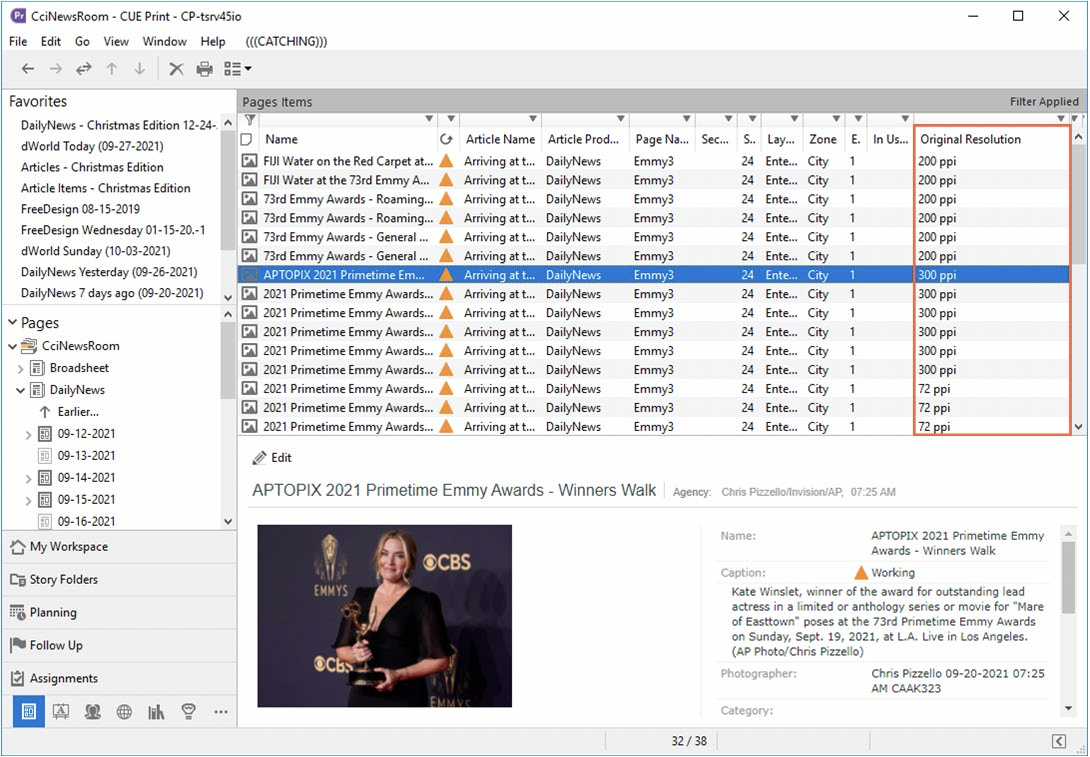
Original Resolution Information in Lists
From CUE Print 3.24.0, information about the original resolution of a photo can be viewed in page item lists (Article mode) in the Pages workspace and in photo message lists.
This information can be used to identify the images that have been imported to CUE Print in a low resolution.
The Original Resolution column is inserted in the list presentation by means of the Customize Current View dialog.
Example of the Original Solution information in a page items list in the Pages workspace:
DocumentListener Installation
When applying one of the following CUE Print context menu options to a selected content item in CUE Print, an Adobe editor is started:
• Open with Adobe Photoshop
• Open with Adobe Illustrator
• Open With Adobe InDesign
After starting up the editor, it will be probed to determine if the Stibo DX DocumentListener Adobe plug-in is installed. If this is not the case, the following prompt will be displayed:
The plugins are found on the ProgramServer, in:
~ngx//PC/NT_WIN32/DocumentListenerPlugins ~ngx//PC/MACOSX/DocumentListenerPlugins
A README-file in the folder describes which plugin is suitable for which Adobe application.
Installation Process
Find the Plug-Ins folder in the Adobe application’s folder, e.g. Adobe PhotoShop 2020.
Create a new StiboDX sub-folder.
Copy the relevant plug-in to the new folder.
Restart the Adobe application.
CUE Print 3.25
Page Preview Quality on Windows Clients
Please note that the changes described below only apply to Windows clients, as PDF files are already used for page previews on Mac workstations.
Furthermore, this enhanced functionality requires that Microsoft Edge WebView2 is installed on the client.
In the Pages workspace, CUE Print uses HTML rendering for pages:
• In the Reading Pane when a page is selected in the list
• In floating preview windows opened by means of the Open Preview action
In systems prior to version 3.25.0, CUE Print used bitmap images of the pages (.png) for page previews on Windows clients.
To improve the preview quality, preview of pages in the Pages workspace will, from CUE Print 3.25.0, be based on PDF files.
The improved preview quality is especially noticeable in large zooms of the page previews..
Free Element Move and Resize in Articles Preferences
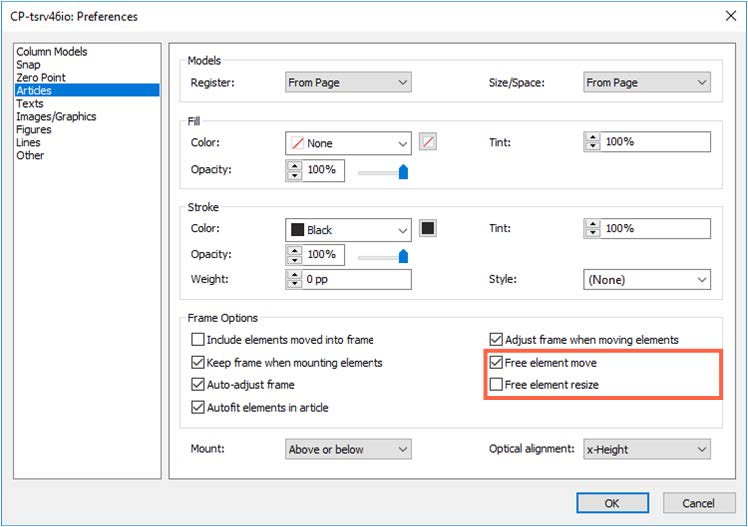
In CUE Print 3.24.0 a new Free element move/resize in article option was introduced in the Articles tab of the CUE Designer Preferences dialog.
This option made it possible to move or resize an element inside an article without affecting the size or position of the other elements in the article.
From CUE Print 3.25.0, the Free element move/resize in article option has been split into two separate preferences used for limiting the automatic reshaping of an article when elements inside the article are moved/resized. The new preferences are:
Free element move
Free element resize
This means that it is now possible to toggle the preferences for moving and resizing elements inside an article on/off individually.
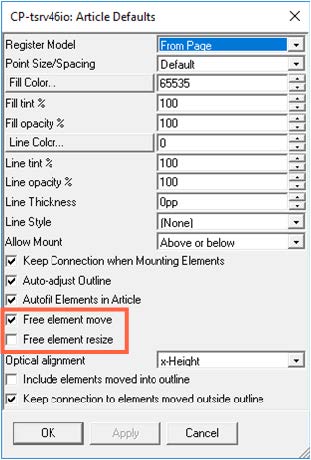
If you want to make one or both option(s) the default setting(s) for CUE Designer, this is done in CUE ModelEdit.
In CUE ModelEdit:
Open the Article Defaults dialog from the Options menu > Article Defaults
Check/uncheck the Free element move and Free element resize check boxes as desired.
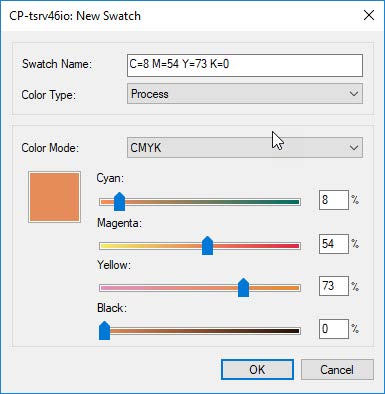
Save a New Swatch with a Color Picked up by the Eyedropper Tool
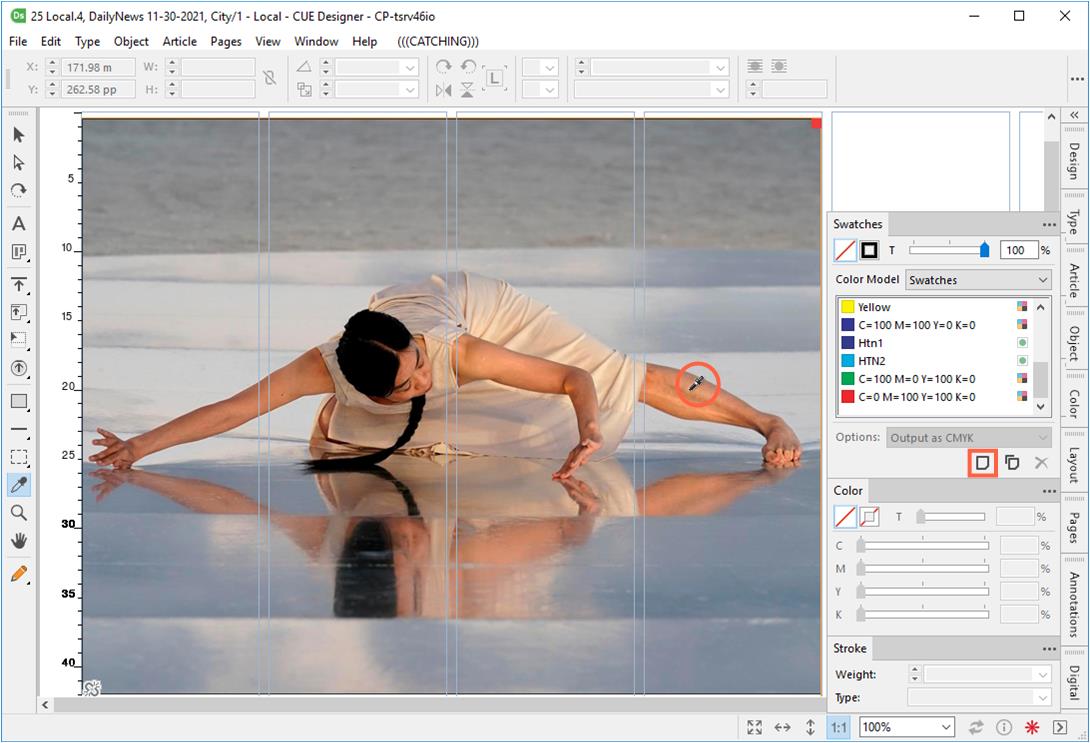
From CUE Print 3.25.0, when the Eyedropper tool is active and the New Swatch dialog is opened, the color picked up by the tool is inserted as default values in the New Swatch dialog.
This means that a new swatch based on the color in the Eyedropper tool can be immediately saved as a new swatch in the Swatches palette.
Select the Eyedropper tool, and pick-up the color for the swatch.
2. Click the New Swatch button in the Swatches palette to open the New Swatch dialog.
3. Name the new swatch and click OK to save it.
The swatch is now saved in the Swatches palette
Editing Tags in CUE Designer
In systems prior to version 3.25.0, tag in CUE Print could only be edited in CUE TagEdit when working on a full client.
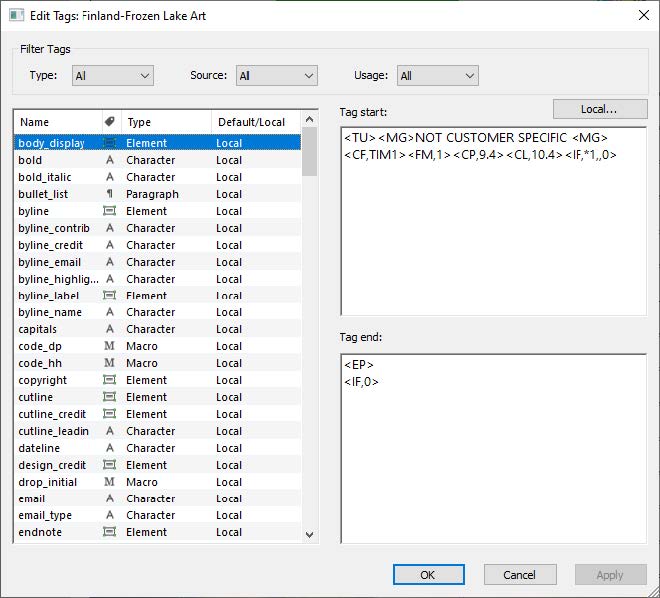
From CUE Print version 3.25.0, it is now possible to see and modify the content of tags from within CUE Designer, when working on thin clients, through a new Edit Tags dialog.
From this dialog you can:
• •
Edit local tags
Edit global tags by copying a global tag to a local tag set, change the tag, and move it back to the global tag set.
Important: Please note, that not all CUE Tagedit functionality is available in the Edit Tags dialog.
The new dialog does not contain functionality to create new tags, and to change tag attributes. These operations still need to be done in CUE Tagedit from a full client.
The Edit Tags dialog is intended as a tool for setup users to make it easier and faster to modify tag definitions.
Opening the Edit Tags dialog
The dialog is opened from the Article Menu > Edit Tags… if the current selection on the page is:
• A text selection
• An element selection. I.e. an article, an element in an article, or a text element.
Please note that it is not possible to open the Edit Tags dialog on a shape in the Shapes palette, when CUE Designer is opened on a production page.
When opened, the title of the dialog displays the name of the article from which is was opened. If the dialog is opened from a selection that is not part of an article, the title displays the name of the text.
The dialog will stay connected with the article/text displayed in the title until it is closed.
Opening multiple instances of the Edit Tags dialog
It is possible to open two Edit Tags dialogs, from two different elements on the page, simultaneously.
This makes it possible to copy a modified tag definition from one local article tag set to another. This is very useful if you want to use the same special typography for e.g., a quote in two articles on the page.
If you attempt to open a third instance of the dialog, a warning is displayed:
The Edit Tags dialog contains the list of tags relevant for the connected element, tag filtering possibilities, the tag start/tag end definitions for each tag in the tag list and a menu button for copying/moving tags between local and default tag sets.
Editing of default tags
It is not possible to edit a default tag from the Edit Tags dialog. When you start modifying a default tag in the Tag start/Tag end fields, the tag is copied into the local tag set, before the changes are applied.
If it is necessary to change a default tag, you must copy it from the local tag set to default tag
set afterwards by means of the Move to Default Tag Set menu option from the Menu button. Important: Please note that changing a global tag will affect all other pages using this tag.
Digital Export Landing Pages
From CUE Print3.25.0, it is possible to associate a landing page (a https link) with images, graphics, and ads in CUE Print (DIS field 153 OnlineURL).
When the image/graphics/ad is mounted on a page, the URL will be part of the digital export.
This means that if you click on the graphic/image/ad in the WebReader or iOS/Android apps, the URL will be opened in a browser.
The landing page URL can be edited in the Other tab in the Properties dialog opened from:
Where a new Landing page field has been added.
In this field, you can:
Add a landing page URL
Modify an existing landing page URL
Delete a landing page URL
Please note that if a landing page has already been associated with an ad in the ad booking system, it is possible to import this information to the landing page field, and this way automate the association process completely.
CUE Print 3.26
De-support of Internet Explorer 11 from the Platinum Release
From the Platinum release we will de-support Internet Explorer 11 as Microsoft ends support for IE 11 in June 2022.
The use of IE 11 for previews in reading panes, etc. has been replaced by Microsoft Edge WebView2. This means that it, from the Oxygen version, will be mandatory for all Windows clients to have Microsoft WebView2 installed (as administrator)
If WebView2 is not installed, or is installed with a fixed version, the user will be met with an error dialog after login.
The dialog will be a variant of the illustration below, depending of the actual error.
WebView 2 can be installed from https://developer.microsoft.com/en- us/microsoft-edge/webview2/#download-section
Furthermore, the Microsoft WebView2 runtime package must be auto-updating (called Evergreen in the Microsoft documentation).
Installing CUE Print 3.26.0
This topic covers important issues concerning the installation of the CUE Print 3.26.0 update.
Pre-Installation
As windows full clients now have been released in 64 bit software, the location of the installation has changed from C:\Program Files (x86) to C:\Program Files.
Also, the registry “location” has changed from
HKEY_LOCAL_MACHINE\SOFTWARE\WOW6432Node\Stibo DX to
HKEY_LOCAL_MACHINE\SOFTWARE\Stibo DX
It is therefore required to un-install all full clients on all PC’s – and also uninstall the IDS client on the InDesign Server, before new installations are done.
Important: Full clients or the IDS Client cannot be updated. New installations are required.
Default shapes shape set in the Shape library.
The content of the shape library can be maintained by means of the Shapes palette in CUE Designer. With the Default Shapes set now being a part of the Shape Library, CUE Designer can now also be used for maintaining (adding, deleting and modifying) the default shapes.
When adding an article to the Shapes palette in CUE Designer, you can select the new Default Shapes set, and this way add a new default shape to the Shape Library.
Please note that if this shape set does not exist, CUE Designer will automatically create it.


The content of the shape library can be maintained by means of the Shapes palette in CUE Designer. With the Default Shapes set now being a part of the Shape Library, CUE Designer can now also be used for maintaining (adding, deleting and modifying) the default shapes.
When adding an article to the Shapes palette in CUE Designer, you can select the new Default Shapes set, and this way add a new default shape to the Shape Library.
Please note that if this shape set does not exist, CUE Designer will automatically create it.
Changing the Product in a Published Online Package
From CUE Print 3.26.0, it is now possible to configure whether the product in a published online package can be changed.
The setting is made in the NewsRoom Setup configuration object in the CUE Print Setup workspace, where a new top-level Online Package tag has been introduced.
This tag contains the <AllowProductChangeOnPublishedPackage> parameter, which makes it possible to control if it is allowed to change the product or not.
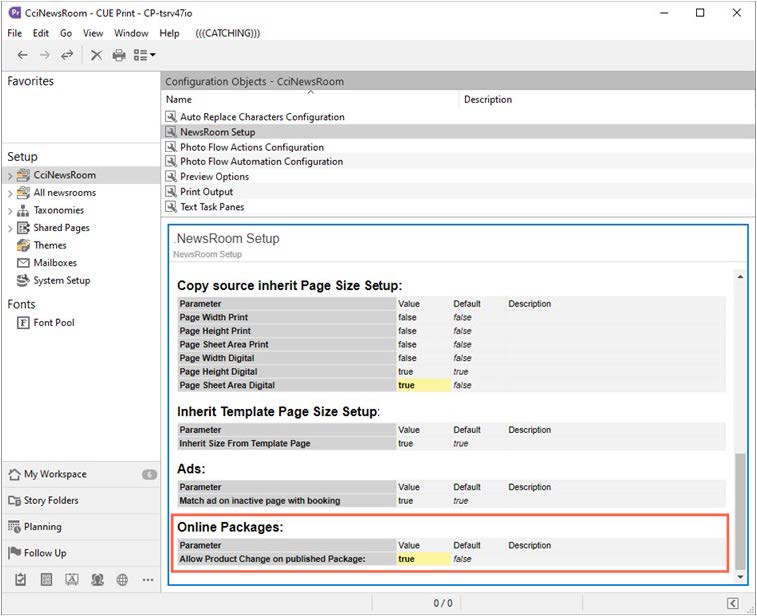
The <AllowProductChangeOnPublishedPackage> option can hold one of two values:
Value
true false
CUE Print – Release Notes Parameterization-related Release Notes
Description Default
Changing the product is allowed
Changing the product is not allowed X
In the XML file the option looks like this:
<!– OnlinePackages/AllowProductChangeOnPublishedPackage Allow users to change product on a published package Values: true or false.
Default value is false
–> <OnlinePackages>
<AllowProductChangeOnPublishedPackage>true</AllowProductChangeOnPubl ishedPackage>
</OnlinePackages>
The default value is false, meaning that a product cannot be changed in a published online package
Editing the <AllowProductChangeOnPublishedPackage> Parameter
The <AllowProductChangeOnPublishedPackage> parameter is changed by editing the NewsRoom Setup configuration object
The configuration object can be edited directly in the database by means of the Edit or CUE Codefixer context menu options, or by dragging-and-dropping the object to the desktop, from where you can edit it, before dragging-and-dropping it back into the Setup workspace.
Geef een antwoord