Nieuw in CUE Print 3.31

New and Changed Features in CUE Print 3.27
-kilk hier voor de vertaling naar Nederlands-
-kilk hier fur Übersetzung ins Deutsch-
CUE Designer Release Notes
Fit image/graphic on Mount According to Placeholder Setting
In systems prior to CUE Print version 3.27.0, the functionality for fitting images and graphics when mounted on a page, was configured in the Product Setup configuration object in the Setup workspace on product level or in the Newsroom Setup configuration object on newsroom level.
The chosen configuration was used for all image/graphics that was mounted on a page in the current newsroom/product.
From CUE Print 3.27.0, the settings made in the configuration object in the Setup workspace remain valid. But now it is also possible to overrule this setup by defining the mount setting individually on a mounted placeholder image or graphic.
The individual setting is made in CUE Designer where a new Fitting when Mounted… menu option that has been added to the Image Palette menu.
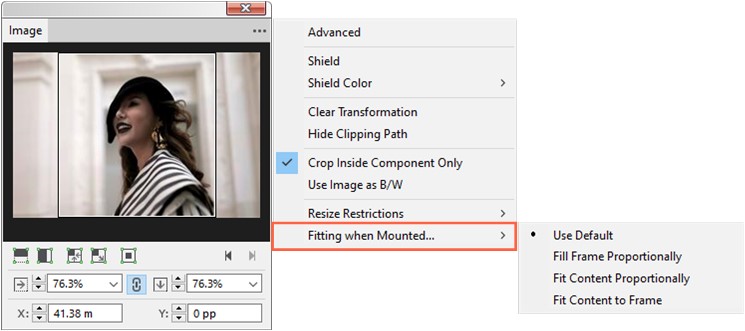
The Fitting when Mounted… menu option has a sub-menu containing four fitting options:
| Option | Description | Default |
|---|---|---|
| Use Default | Uses the configured value made in the configuration object in the Setup workspace | X |
| Fill Frame Proportionally | Resizes the image content to fill the entire frame while preserving the its proportions. | |
| Fit Content Proportionally | Resizes the image to fit the frame while preserving its proportions. | |
| Fit Content to Frame | Resizes the image content to fill the entire frame horizontally and vertically – and thus allowing distortion of image or graphic. |
Leading as Number of Register Lines
In order to simplify the setup of leading to match the actual register leading defined by the assigned register model, the leading parameter of the <CL,a>Change Leading composition code has been modified in CUE Print version 3.27.0.
If the leading parameter entered is a number “x” followed by a “l”, e.g. 1l, the resulting leading will match “x” times the register leading, i.e. <CL,1l> for 1 register line as leading or <CL,2l> for two times the register lines as leading.
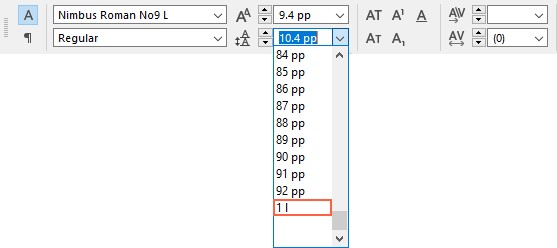
In CUE Designer, a fixed “1 l” entry has been added to the drop-down list of options for the  option in the Edit bar:
And in the Character palette:
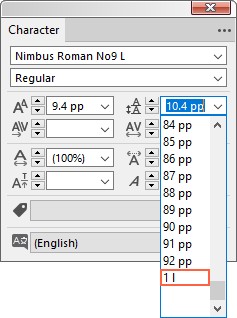
Selecting the “1 l” option results in activation of the “Register hold” justification functionality.
CUE Flatplanner Release Notes
Copy Template Page in CUE Flatplanner
3.27, From CUE Print 3.27.0, it is now possible to duplicate template pages in the Template library from within CUE Flatplanner.
A new Duplicate Page(s)content menu option has been added to CUE Flatplanner Planning mode. With this new option you can duplicate:
- A single template page
- Multiple template pages
- One or more spans
The new feature makes it very fast and easy to create new template pages, as the duplicated copy can be modified to your needs.
New and Changed Features in CUE Print 3.28
Below, you find an overview of the new and changed features in CUE Print 3.28
Click the link in each feature, to see a detailed description of the changes.
CUE Designer Release Notes
Changed Refresh Icon
From CUE Print version 3.28, the Refresh icon  in the CUE Designer Status bar and in the Page Layers palette Status bar have been replaced with the
  icon.
icon.
New and Changed Features in CUE Print 3.29
CUE Composer and CUE Designer Release Notes
Use of CUE Language Service in CUE Composer and CUE Designer
From CUE Print3.29, it is now possible to check for spelling and grammar errors in CUE Designer and CUE Composer.
In CUE Designer and CUE Composer, the spelling errors are displayed with a red underline and the grammar errors with a yellow underline:

The spelling /grammar check is done through the WSM-service LinguisticService, which now can call a web-service that could be based on LanguageTool.
The language used for spell/grammar check is the current hyphenation language.
Setting Up Spelling and Grammar Check
From CUE Print version 3.29, it is possible to specify spell check entries the CCI ConfigurationManager parameter.
General.SystemConnections.ServerConnections
The HostName must be the spell check URL to contact.
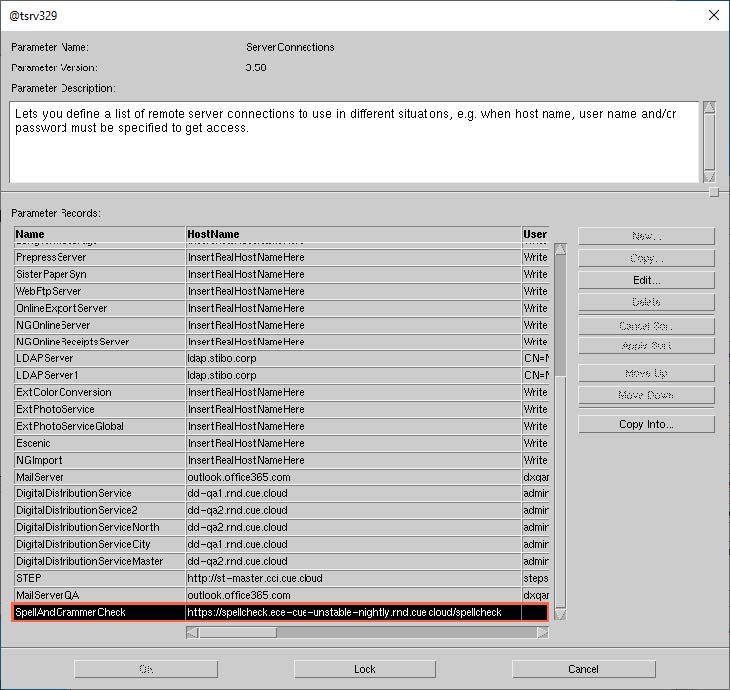
In the CUE Print Setup workspace in the System Setup – Text Options configuration, it is possible to specify which spell check server connection is used.
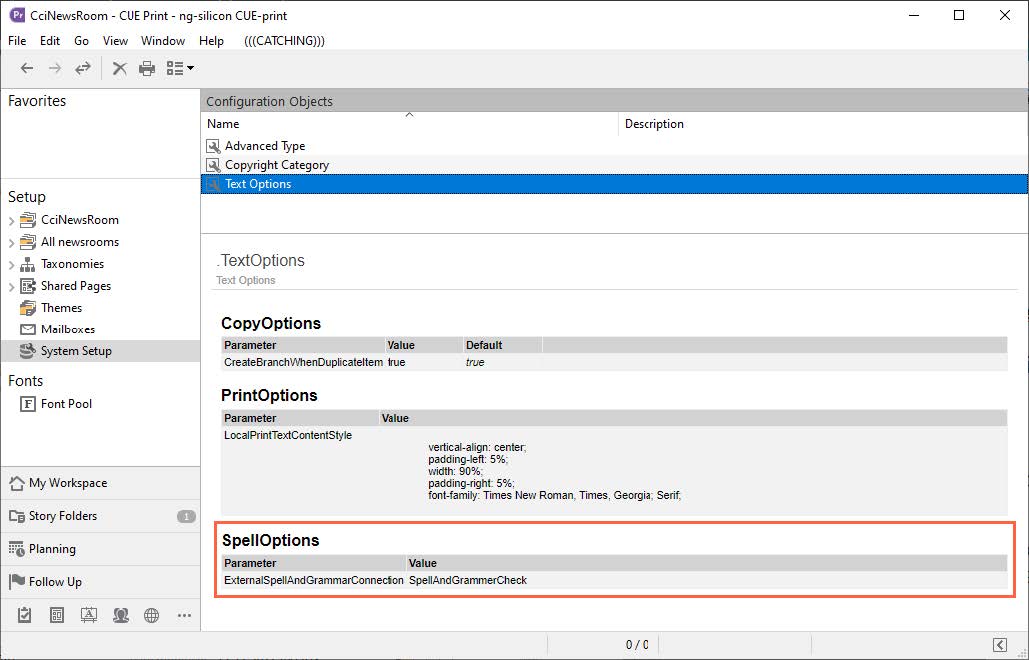
The spefication is made in the ExternalSpellAndGrammarConnection parameter in the <SpellOptions> tag.
<SpellOptions>

<ExternalSpellAndGrammarConnection>SpellAndGrammerCheck</ExternalSpellAndGrammarConnection>

</SpellOptions>
If the ExternalSpellAndGrammarConnection parameter is not specified – or the value cannot be found in the CCI ConfigurationManager parameter.
General.SystemConnections.ServerConnections
the built-in check based on LibreOffice spell check will be used (only spelling errors and no grammar error).
Editing the Text Options Configuration object
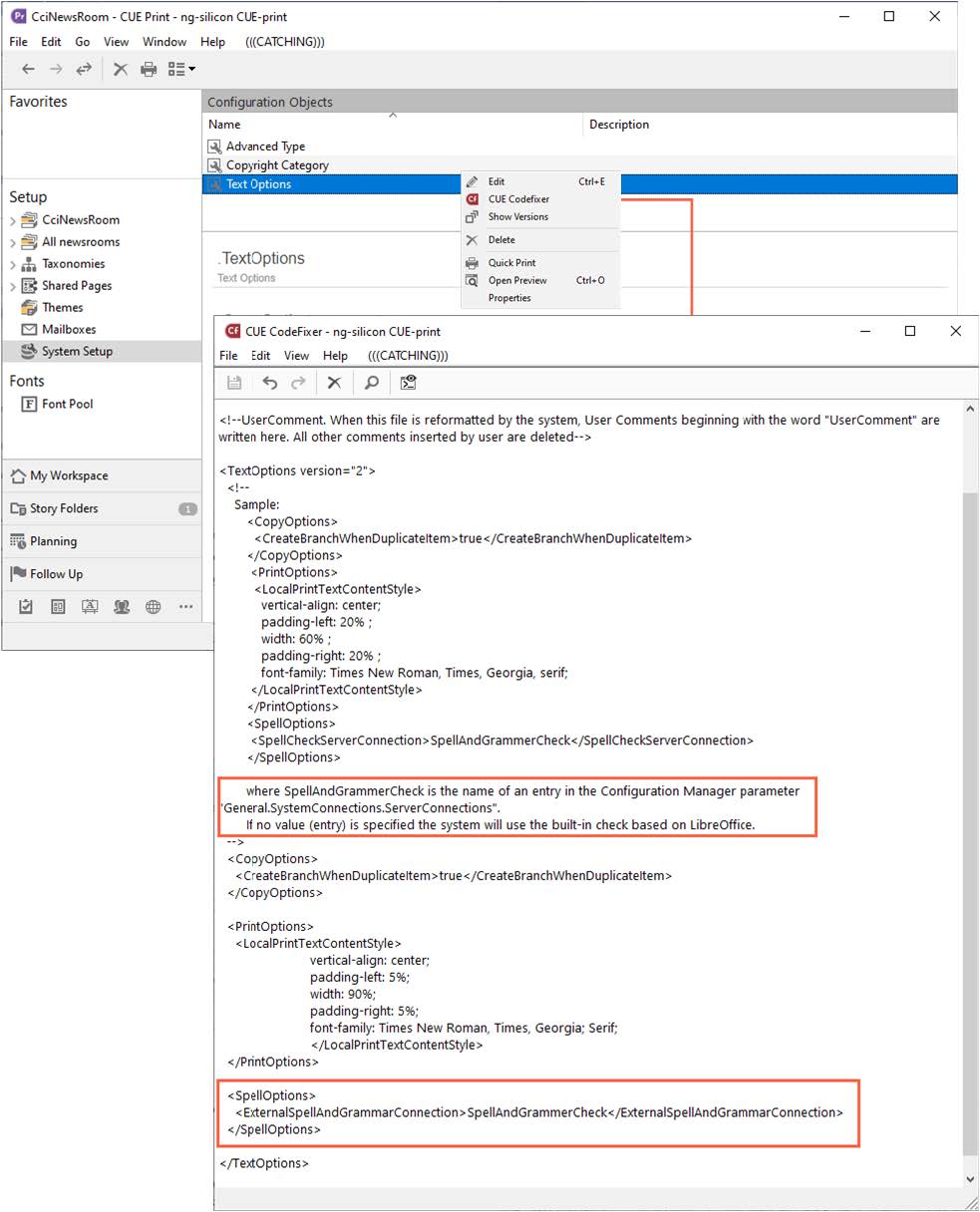
The ExternalSpellAndGrammarConnection parameter in the <SpellOptions> tag is modified by editing the Text Options configuration object.
The configuration object can be edited directly in the database by means of the Edit or CUE Codefixer context menu options, or by dragging-and-dropping the object to the desktop from where you can edit it before dragging-and-dropping it back into the Setup workspace.
CUE Designer Notes
Resizing an Image on the Page
In systems prior to version 3.29, when an image frame in CUE Designer was resized so that the image frame was no longer filled with image content and the Crop Inside Component Onlymenu option in the Image palette had been set on the image, a message informing you that the resize could not be done appeared. Before the resizing of the image could be done, the Crop Inside Component Only option in the Image palette had to be turned off.
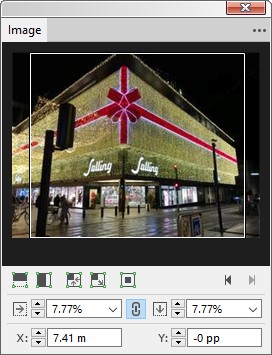
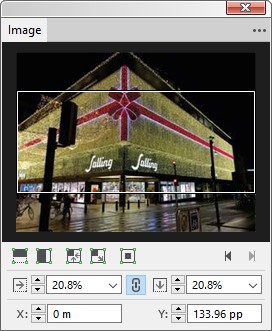
From CUE Print version 3.29, when an image is resized directly on the page – And the resize would historically result in the Crop Inside Component Only warning, the system will now try to prevent the cropping outside of the image by not only resizing, but also:
- Moving the crop area into the image (changing x, y of crop area)
- Scaling the image
New Automatic Photo Flow Trigger Introduced
From CUE Print3.29, a new In shape automatic photo flow trigger has been introduced in the CUE Print photo workflow.
The new trigger can be triggered in three cases:
- When a photo is added to a shape in CUE Composer.
- When one or more photos are imported from CUE.
- When a photo is mounted on a page. This is in the case where a photo has not already activated the In shape trigger. Then the In shape trigger will be activated when the photo is mounted on a page.
New and Changed Features in CUE Print 3.30.0
CUE Print Lists Release Notes
Change “Keep Indefinitely” Value from a Story Folder List
When a new story folder is created, an expiration property is automatically set on the story folder by the system. This property determines how long the story folder is kept inside CUE Print.
From CUE Print3.30.0, it is now possible to set/clear the Keep Indefinitely property on all selected story folders by means of a new context menu in the Keep Indefinitely column in story folder lists..

CUE Flatplanner Release Notes
Display Page Description in Page Bars
From version CUE Print3.30.0, the page Description can now be displayed in the Page Title Bar and also in the Page Info Bar as a separate line.
New and Changed Features in CUE Print 3.31.0
CUE Print Workspace Release Notes
Changing Rank on Articles in the Pages Workspace
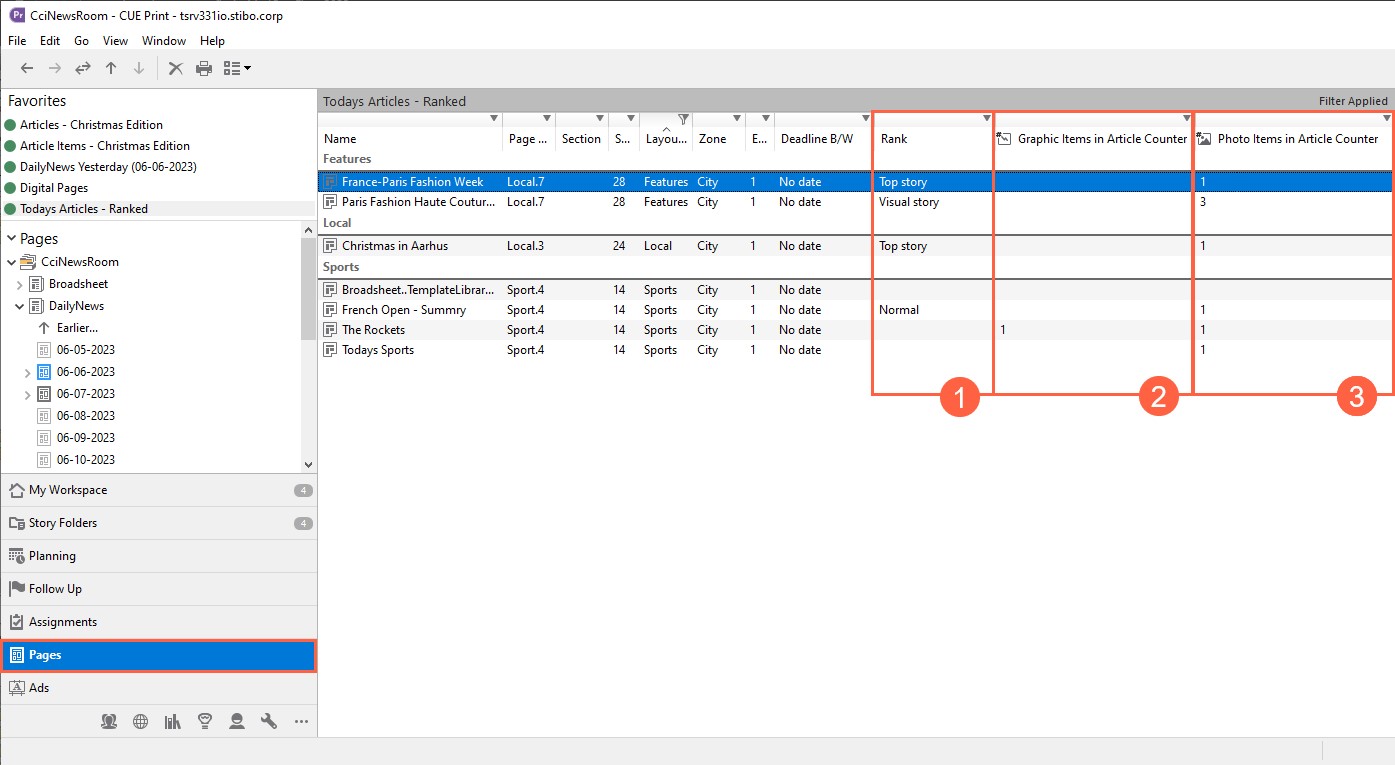
In systems prior to CUE Print3.31.0, it was not possible to see the Rank of an article in Article Lists in the Pages workspace.
From CUE Print version 3.31.0, the Rank field can now be inserted in the Article List presentation in the Pages workspace.
Furthermore, two new Photo Items in Article Counter and Graphic Items in Article Counter fields have been added to the list of fields that can be added to the Article List presentation.
CUE Designer Release Notes
New “Autofit Size” Option in the Layout Palette
From CUE Print version 3.31.0, the Autofit Size option in the CUE Designer Layout palette has been extended with a new Contents – Article FrameAutofit Size: option.
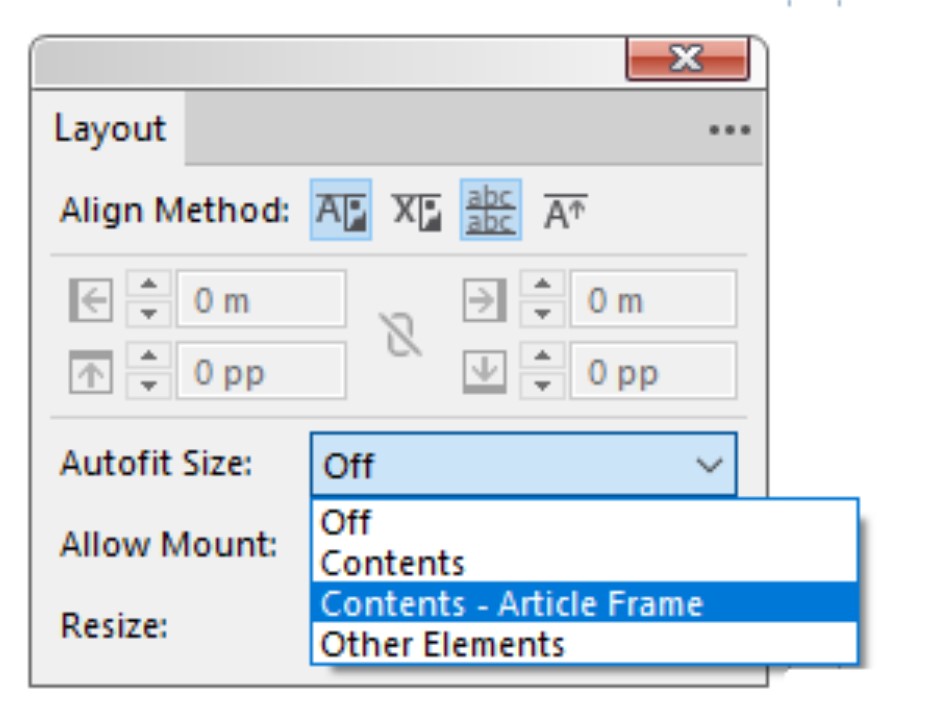
This option can be used in cases where you want an element, e.g. a photo caption, to adapt to the entered text, but without ever compromising the article frame.